How to Find Your ASIC Miner’s IP Address: A 2026 Complete Guide
- Preparation: Ensuring Your ASIC is Properly Connected
- The Standard Method: Using IP Reporter
- Best IP Scanners for ASICs: PC Software Review
- Finding Your Miner’s IP via Router Settings
- “Locate Miner” Function: Identifying Your Device via LEDs
- Finding the IP via Command Line (ARP Table)
- Troubleshooting: What if You Still Can’t Find the ASIC?
Launching new mining hardware is always an exciting process. However, it starts not with setting up a pool, but with the simple task of locating the device on your local network. Even in 2026, as manufacturers strive for maximum automation (Plug-and-Play), “how to find my ASIC’s IP address” remains one of the most frequent support queries. Without access to the web interface, you cannot configure workers, change passwords, or fine-tune overclocking settings. In this article, we’ll cover all the current methods for detecting miners — from official manufacturer software to “pro” command-line techniques — and what to do if your device refuses to appear online.
Preparation: Ensuring Your ASIC is Properly Connected
Before diving into software methods, ensure the basic technical conditions are met. In 90% of cases, the “I can’t see my ASIC” problem is rooted in physical connection or incorrect network topology.
- Single Subnet: Your computer (or smartphone) and the miner must be connected to the same router or switch. If your PC is on a “Guest” Wi-Fi network and the ASIC is wired into the main segment, they may not see each other due to traffic isolation.
- Cable Quality: Use at least Cat 5e patch cords. In high-temperature environments and with electromagnetic interference in mining farms, poor contact can cause the ASIC’s network card to reboot constantly.
- DHCP Server: By default, all modern models (Antminer, Whatsminer, Avalon) are set to obtain an address automatically. Make sure the DHCP function is enabled on your router; otherwise, the device simply won’t be assigned an internal IP.
The Standard Method: Using IP Reporter
This is the “gold standard” for Bitmain (Antminer) owners, but similar utilities exist for other brands. The beauty of this method is that you don’t need to scan hundreds of addresses — the device “knocks” on your computer itself.
Step-by-step Algorithm:
- Download the official IP Reporter utility from the manufacturer’s site or a trusted resource.
- Run the program on your PC. You will see three fields: Shelf, Step, and Number. For home use, leave them at default (1-1-1).
- Click the “Start” button.
- Go to your powered-on ASIC and hold the “IP Report” button on the control panel (usually near the Normal/Fault LEDs) for 2–5 seconds.
- A pop-up window will instantly appear on your computer screen showing the IP and MAC addresses of your miner.
In 2026, this software has become more stable, but it still requires physical access to the hardware. If your ASIC is in a remote data center, proceed to the following steps.
Best IP Scanners for ASICs: PC Software Review
If there are no buttons on the case or they aren’t working, specialized scanners come to the rescue. They ping a range of addresses in your network and look for devices with open ports or specific hostnames.
| Software | Advantages | Complexity |
|---|---|---|
| Advanced IP Scanner | Most popular, free, and very intuitive. Shows manufacturer names (Bitmain, MicroBT). | Low |
| Angry IP Scanner | Cross-platform (Win/Mac/Linux), extremely fast due to multi-threading. | Medium |
| BTC Tools | Specialized mining software. Allows you to find IPs and bulk-change pools or firmware. | High (Pro) |
When using Advanced IP Scanner, simply click the “Scan” button. Look for devices named “antminer”, “whatsminer”, or “avalon” in the results. If no names appear, check the “Manufacturer” column — it often lists the network chip maker (e.g., Texas Instruments or Xilinx).
Finding Your Miner’s IP via Router Settings
The router is the “dispatcher” of your network; it knows every connected device. This method is the most reliable as it doesn’t require third-party software that might be flagged by antivirus.
- Log into your router’s admin panel (usually
192.168.1.1or192.168.0.1). - Navigate to the “Client List”, “DHCP”, or “Network Map” section.
- Find the new device in the list. In 2026, modern routers (Keenetic, TP-Link, ASUS) automatically pull device icons and names.
- Copy the IP address and paste it into your browser’s address bar.
Pro Tip: If you plan to mine seriously, use the “Address Reservation” feature in your router settings for that MAC address. This prevents the router from assigning a new IP after a power surge, which would break your browser bookmarks.
“Locate Miner” Function: Identifying Your Device via LEDs
Imagine finding 20 identical ASICs on your network via a scanner, but you need to know which one is physically in the corner or has a fan issue. Every modern firmware includes a Locate function.
Log into the ASIC’s web interface (Dashboard or Settings) and click “Locate” or “Flash LED”. The LEDs on the front panel will start flashing rapidly (usually red and green). This allows you to unmistakably identify the miner in a rack among dozens of its “siblings.”
Finding the IP via Command Line (ARP Table)
This method is for those who prefer the tech-savvy route or have a limited interface. We use the ARP (Address Resolution Protocol), which maps IP addresses to physical MAC addresses.
- Open the Command Prompt (Win + R, type
cmd). - Type the command
arp -a. - The system will display a table of all known devices in the local segment.
The downside is that the table only shows devices your PC has recently communicated with. To “refresh” the table, ping the entire network first with a command like for /L %i in (1,1,254) do @ping -n 1 -w 100 192.168.1.%i | find "Reply" (for the 192.168.1.x subnet), then check arp -a again.
Troubleshooting: What if You Still Can’t Find the ASIC?
Sometimes, even after all these steps, the miner remains “invisible.” Here is a checklist for 2026:
- Factory Reset: The most common reason is a static IP from a different subnet (e.g., 10.0.0.x while yours is 192.168.1.x) saved on a used device. Hold the Reset button on the powered ASIC for 10–15 seconds until the LEDs flash. This returns it to DHCP mode.
- Check Firewall: Your firewall or antivirus might be blocking incoming packets from unknown devices. Try disabling protection temporarily.
- IP Address Conflict: If two devices claim the same IP, neither will work correctly. Check your router’s client list for duplicates.
- Faulty Control Board: If the link light on the router port isn’t on, the ASIC’s control board might be damaged. Try a different port or cable.
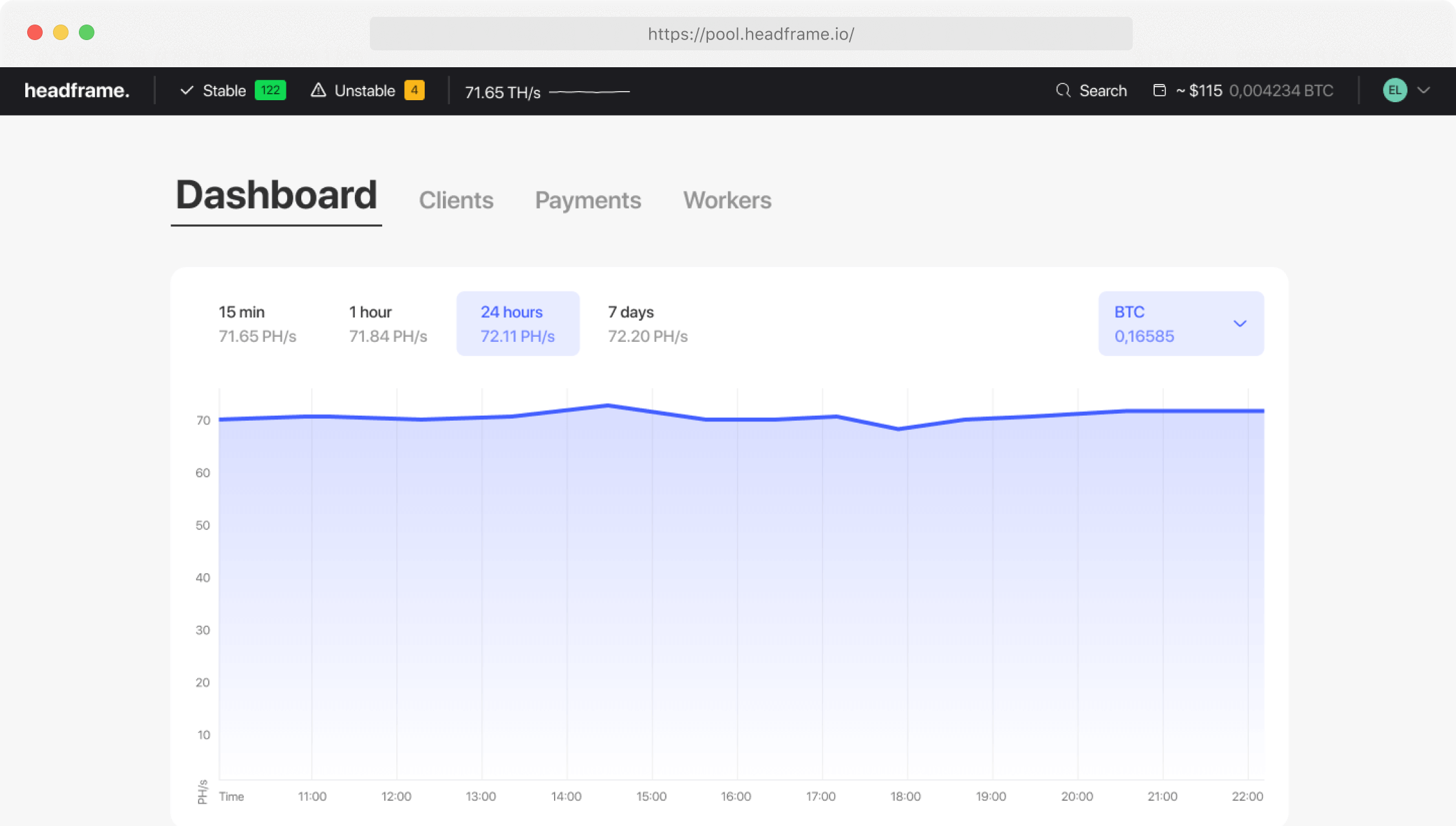
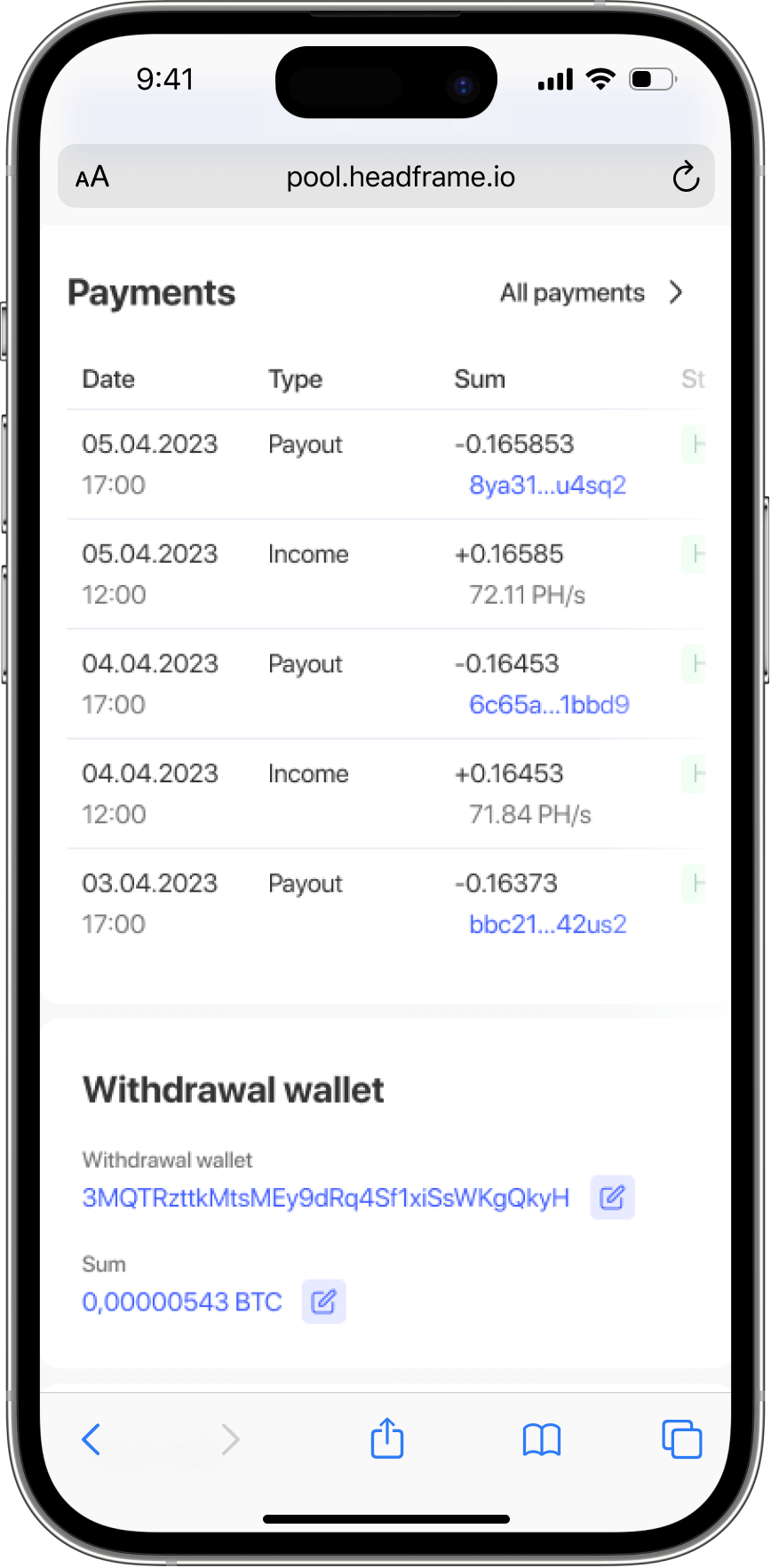
Once you have successfully identified the IP and gained access to the management dashboard, it’s time to choose a reliable mining platform. We recommend checking out Headframe Mining Pool. It is a modern solution for BTC mining, optimized specifically for ASIC hardware.
Why choose us? We offer a fair FPPS payout system with a transparent commission of just 0.9%. Our stratum servers are configured to bypass ISP blocks, which is critical for stable uptime. Payouts occur daily with no hidden fees, and you can monitor your devices via our user-friendly mobile app for iOS and Android. Join the pros and maximize your revenue with Headframe!